
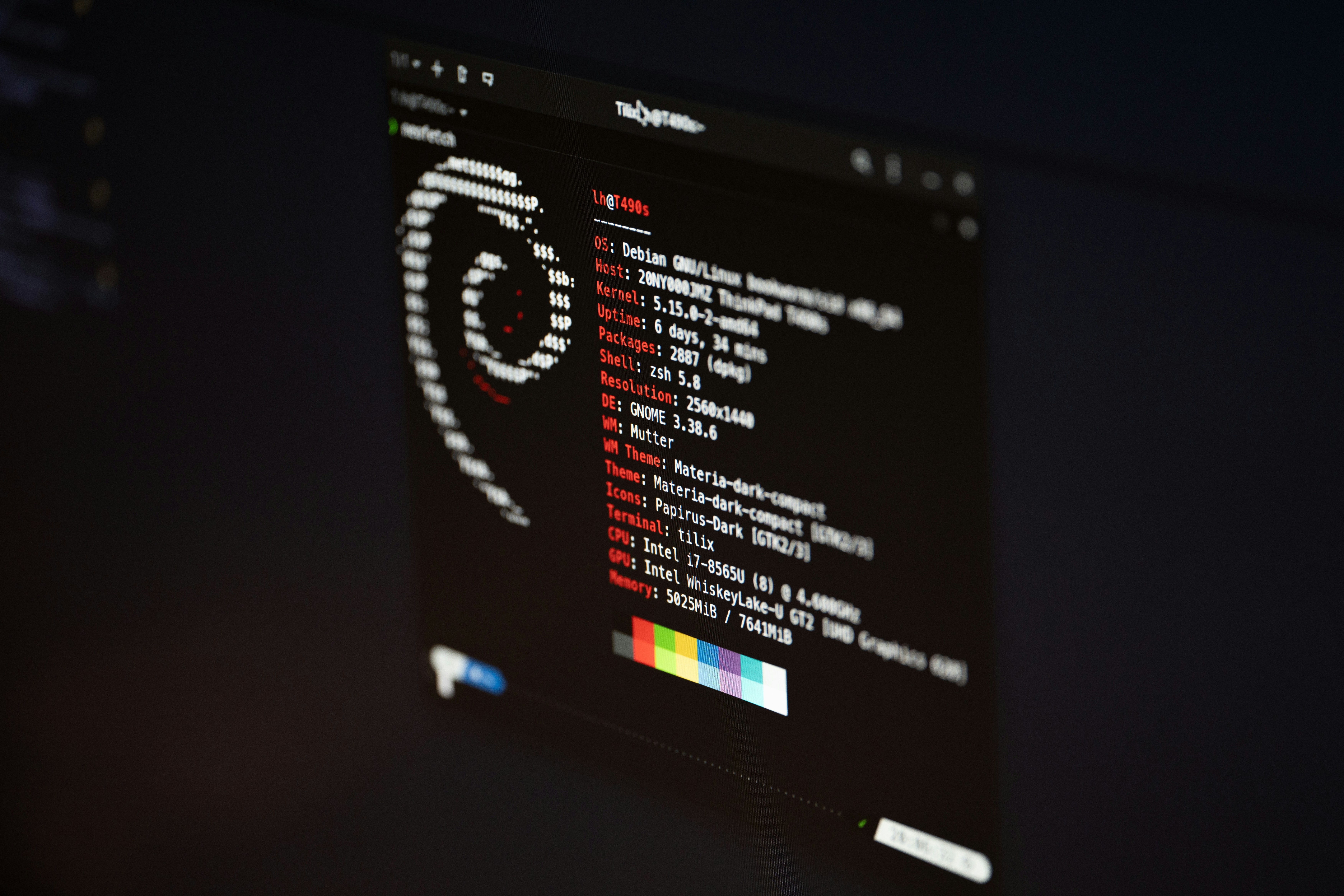
Introduction to Kali Linux
Kali Linux is a specialized Linux distribution crafted for penetration testing and security auditing. It serves as a vital tool in the field of cybersecurity, providing a rich environment for security professionals to assess the security posture of various systems and networks. Originally derived from Debian, Kali Linux comes pre-installed with an extensive suite of tools that cater to information security tasks, including ethical hacking, vulnerability assessment, and forensic analysis.
One of the main purposes of Kali Linux is to facilitate the testing of systems to identify potential weaknesses. It empowers cybersecurity experts, penetration testers, and researchers to not only perform security assessments but also understand and mitigate risks associated with cyber threats. This distribution supports a variety of tasks ranging from password attacks and network sniffing to wireless attacks and web application security assessments.
Kali Linux is designed for both experienced hackers and those new to the field of cybersecurity. Its user-friendly interface, along with comprehensive documentation, makes it accessible for learners while providing advanced features necessary for seasoned professionals. Moreover, the community around Kali Linux is vibrant and active, offering tutorials, forums, and support resources, which enhance the user experience and learning curve.
In recent years, the demand for cybersecurity professionals has surged, leading to an increased interest in tools like Kali Linux. By utilizing this platform, individuals looking to pursue a career in cybersecurity can develop essential skills and gain hands-on experience with real-world scenarios. Ultimately, Kali Linux represents a crucial resource in the ongoing battle against cyber threats, playing an indispensable role in the field of penetration testing and security research.
System Requirements for Kali Linux
To ensure a successful installation of Kali Linux, it is crucial to meet the system requirements specified by its developers. Understanding these requirements aids in creating an optimal environment for performing cybersecurity tasks. Both minimum and recommended specifications should be taken into account.
The minimum requirements for installing Kali Linux typically include a compatible 64-bit processor, 2 GB of RAM, and at least 20 GB of hard disk space. While these specifications allow the installation of Kali Linux, the performance may be limited, and users might experience slower operations during resource-intensive activities. Thus, these requirements are ideally suited for users who are exploring the system or conducting basic tasks.
For a more efficient experience, the recommended specifications suggest using at least a dual-core processor, 4 GB of RAM, and a minimum of 50 GB of disk space. These upgrades facilitate smoother multitasking and the effective running of various penetration testing tools found in Kali Linux. Additionally, utilizing a dedicated graphics card can enhance the overall functionality, particularly when performing graphical analyses and rendering reports.
Further considerations when installing Kali Linux include ensuring compatibility with the selected hardware, such as network interfaces and peripherals. It is also advisable to check the supported devices list provided by the Kali Linux development team, as this will help avoid complications during installation.
In conclusion, by comprehensively reviewing and adhering to the system requirements for Kali Linux, users can ensure a more successful and efficient experience as they engage with cybersecurity applications on this advanced platform.
Preparing for Installation
Before installing Kali Linux, it is vital to undertake several preparatory steps to ensure a smooth installation process. The first step is to obtain the correct version of the Kali Linux ISO file. This can be done by visiting the official Kali Linux website where you can download the latest release. It is important to verify the integrity of the downloaded file using checksums provided on the site to ensure that you have a reliable copy that hasn’t been tampered with.
Once you have downloaded the ISO file, the next step involves creating bootable media. This can be accomplished using either a USB flash drive or a CD/DVD, depending on your preference and the resources available. For USB drives, tools such as Rufus for Windows or Etcher for multiple OS platforms can easily create bootable media. When using a USB, ensure that it is at least 8 GB in size and all data on it is backed up, as creating the bootable drive will erase existing data.
As an additional precaution, it is highly advisable to back up any important data before beginning the installation process. This ensures that you do not lose any crucial files during the installation of Kali Linux, especially if you plan to dual boot with another operating system. Regular backups can save you from potential data loss and help you recover your data in case of unexpected issues during installation.
In summary, preparing for the installation of Kali Linux involves downloading the ISO file, creating bootable media, and backing up important data. Following these steps diligently will help you set the foundation for a successful installation, ultimately leading to a robust environment for cybersecurity practices.
Booting from Installation Media
After successfully downloading the Kali Linux ISO file, the next step is to create an installation media, typically done using a USB flash drive or CD/DVD. Once you have created the bootable media, you need to boot your computer from it to start the installation process. This involves adjusting your computer’s BIOS settings to change the boot order, ensuring that it first attempts to boot from the USB or CD/DVD drive.
To access the BIOS settings, restart your computer and watch for a prompt indicating which key to press to enter the BIOS menu; common keys include F2, F10, ESC, or DEL. Once you enter the BIOS, navigate using the arrow keys to find the boot menu. Here, you may see a list of devices that your computer can boot from. Depending on your setup, this may include the hard drive, network, USB, and CD/DVD drives.
Locate the section that manages the boot priority and ensure that the USB or CD/DVD drive is listed first. To adjust the order, you might use keys like the + or – keys or follow on-screen instructions specific to your BIOS. After making the necessary changes, save your settings and exit the BIOS. Your computer will then restart.
If the boot order is correctly configured, your computer should recognize the installation media and begin the Kali Linux boot sequence. If it does not, you may need to check that the USB or CD/DVD has been properly created as a bootable drive, or revisit the BIOS settings to confirm that the changes were saved. Once successfully booted from the installation media, you can proceed with the installation of Kali Linux, further enhancing your cybersecurity skills.
Choosing the Right Installation Option
When it comes to installing Kali Linux, users are presented with various installation options that cater to different skill levels and preferences. The two primary methods are the graphical installation and the command-line installation. Understanding these options is crucial for ensuring a smooth setup process.
The graphical installation is the most user-friendly approach, designed for those who may not be well-versed in command-line interfaces. This method allows users to interact with a visual interface, guiding them through the installation steps with intuitive prompts. It includes features such as automatic network configuration and partitioning assistance, making it suitable for beginners or those who prefer a straightforward process. To install Kali Linux using this method, users typically boot from the installation media, select the graphical installation option from the boot menu, and follow the on-screen instructions.
On the other hand, the command-line installation is better suited for users with more advanced skills or specific customization needs. This method requires familiarity with terminal commands, as the installation process relies heavily on textual input rather than visuals. It allows for greater flexibility in configuring system components, network settings, and disk partitions according to user specifications. Those who choose to install Kali Linux this way should ensure they are comfortable navigating the terminal and understanding command-line syntax.
Ultimately, the choice between graphical and command-line installations depends on the user’s experience level and preference. For new users or those looking for a quick setup, the graphical method is advisable. Conversely, experienced users who desire detailed control over their installation may prefer the command-line option, which can lead to a more tailored configuration. Selecting the appropriate method is essential for setting a solid foundation for using Kali Linux, especially in the realm of cybersecurity.
Step-by-Step Installation Process
Installing Kali Linux is a critical process for those interested in exploring cybersecurity tools and practices. This section provides a thorough guide to ensure a smooth installation experience.
Begin by downloading the Kali Linux ISO from the official website, ensuring that you select the correct version for your hardware architecture. Once the download is complete, create a bootable USB drive using tools such as Rufus or balenaEtcher. Insert this USB into the system where you wish to install Kali Linux.
Upon booting your computer, access the BIOS or UEFI settings and configure the boot order to prioritize USB booting. Save the changes and restart your computer. As it boots, select ‘Live Boot’ or ‘Graphical Install’ from the boot menu. This option allows you to evaluate Kali Linux before proceeding with the installation.
Following your selection, the installation wizard will appear. Choose your preferred language and location, which will configure your keyboard and system settings accordingly. The next step involves partitioning the hard drive. Here you can opt for either guided partitioning or manual partitioning. Guided partitioning is recommended for beginners; it automatically sets up partitions for you. However, manual partitioning is useful for those who wish to customize the layout.
After partitioning, select the installation type, which typically includes options like installing alongside another operating system or using the entire disk. If you choose to erase an existing OS, be sure you have backups of your data as this will remove all existing partitions.
Continue through the installation wizard by confirming your selections, setting up the user account, and configuring the network. Once the installation is finalized, the system will prompt you to remove the installation media and reboot. Upon rebooting, you will have successfully installed Kali Linux, equipped with essential features for your cybersecurity endeavors.
Post-Installation Configuration
Once the Kali Linux installation is complete, it is essential to perform several configurations to ensure the system is optimized for use in cybersecurity. First and foremost, updating the system is crucial. This can be accomplished by opening the terminal and executing the command sudo apt update && sudo apt upgrade. This will fetch the latest updates and patches, which are vital for maintaining security and system stability.
Next, setting up user accounts should be considered, particularly in environments where multiple users will access the system. By default, the root account may be used; however, for security reasons, it is advisable to create a standard user account with limited privileges. This can be done using the command sudo adduser username, replacing “username” with the desired account name. Follow the prompts to set a password and complete the account setup. It is best practice to limit the use of the root account during daily operations.
Additionally, configuring network settings is another crucial step in the post-installation process. Depending on your setup, you may need to adjust settings to optimize connectivity or improve security measures. This can be accessed from the system settings, where you can manage network interfaces, set static IP addresses, or adjust firewall settings. Activating the firewall is particularly important in a cybersecurity environment; enabling ufw (Uncomplicated Firewall) can be accomplished with the commands sudo ufw enable for activation and sudo ufw status to check its status.
These post-installation configurations not only enhance the functionality of Kali Linux but also strengthen its role as a powerful tool in the domain of cybersecurity. Taking the time to perform these initial setups greatly improves the overall user experience and security posture of the system.
Installing Additional Tools
Once you have successfully install Kali Linux, the next step is to enhance its functionality by installing additional tools and packages. Kali Linux comes pre-packaged with a wide range of cybersecurity tools; however, users may still want to install more specialized software to suit their unique needs.
Kali Linux utilizes the Advanced Package Tool (APT), which simplifies the process of managing software installation and updates. To begin, ensure that your system is up to date by executing the following command in the terminal:
sudo apt update && sudo apt upgradeThis command not only updates the package index but also upgrades the existing packages to their latest versions, ensuring that you are operating with the most recent tools and security patches.
To install new packages, you can use the apt install command followed by the name of the tool you wish to add. For instance, if you want to install Metasploit Framework, which is popular for penetration testing, the command would be:
sudo apt install metasploit-frameworkIn addition to the core tools available via APT, Kali Linux provides access to various repositories that host numerous packages. These repositories can offer tools for different aspects of cybersecurity such as networking, forensic analysis, and wireless testing. To explore these tools, you can browse the Kali Linux website or other trusted platforms.
When sourcing packages from repositories, always verify their authenticity and compatibility. For more specialized tools not found in default repositories, consider downloading and compiling them from their official sources. While this method may require additional steps, it often provides access to cutting-edge software.
By effectively utilizing the APT command and incorporating additional repositories, you can significantly expand the capabilities of your Kali Linux environment, enhancing both your productivity and cybersecurity toolbox.
Troubleshooting Common Installation Issues
Installing Kali Linux can be a straightforward process for many users; however, there are some common issues that may arise during installation. Understanding these potential pitfalls can significantly ease the experience and enhance the overall success of your setup. Here are some prevalent problems and their corresponding troubleshooting strategies.
One common issue encountered during the installation of Kali Linux is the detection of hardware components. If your system does not recognize essential peripherals such as network adapters or graphics cards, it may lead to an incomplete installation. To resolve this, ensure that you are using the latest version of the Kali Linux ISO file. Verify compatibility with your hardware and consider utilising a Live USB to test hardware functionality before performing a full installation.
Another typical problem pertains to partitioning errors. Many users may misconfigure their disk partitions, particularly when using a dual-boot setup alongside existing operating systems. To avoid this, carefully plan your partitions prior to the installation. Utilizing tools like GParted can help facilitate this process by visually depicting your drive layout. Additionally, opting for the guided partitioning option during the Kali installation can assist users unfamiliar with manual partitioning.
Network connectivity is crucial during installation, especially if you are downloading updates or additional packages. If you encounter network issues, ensure that your internet connection is active and properly configured. If you are using a wireless connection, it may help to connect via an Ethernet cable initially to ensure you have a stable connection throughout the installation process.
Finally, installation may freeze or fail for various reasons, including insufficient system resources or conflicting software on the host machine. If you experience a freeze, try restarting the installation or checking system requirements to confirm that your hardware is adequate for running Kali Linux. Whenever possible, consult the Kali Linux installation documentation for specific guidance tailored to your system’s needs.